
FixedLeft Theme
Contents
The fixedleft theme features a left sidebar that does not scroll off the display. The right side displays the wiki page content.
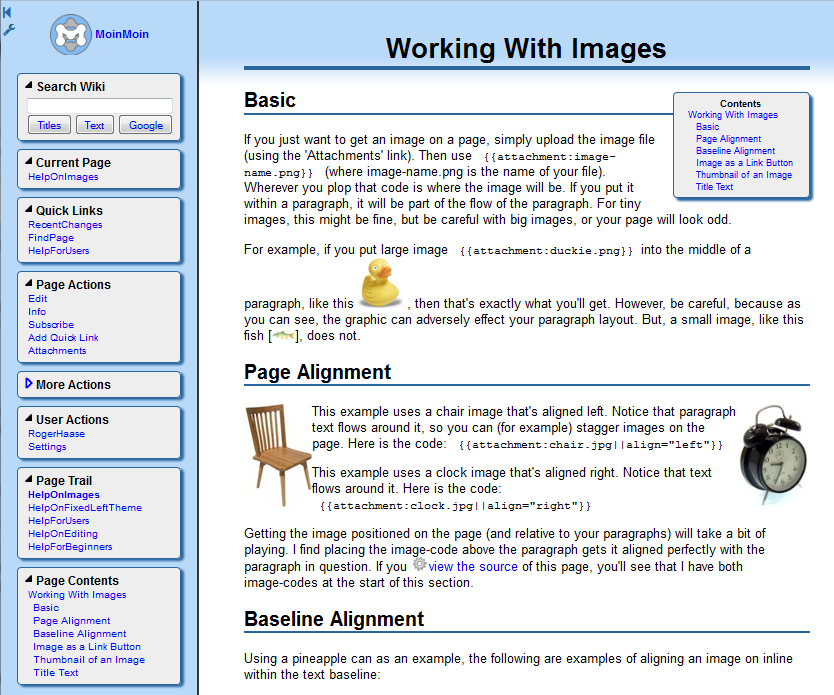
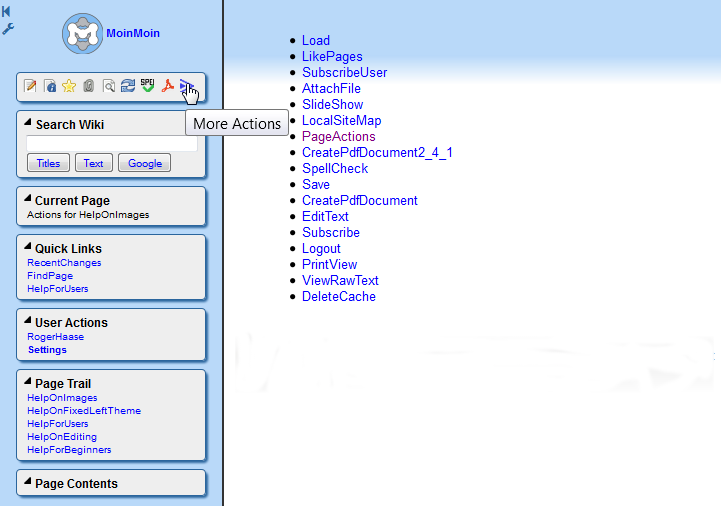
An optional theme, fixedlefticonbar, eliminates the need for the Page Actions and More Actions panels and reduces the height of the sidebar. Access to all page actions is achieved by adding a More Actions icon.
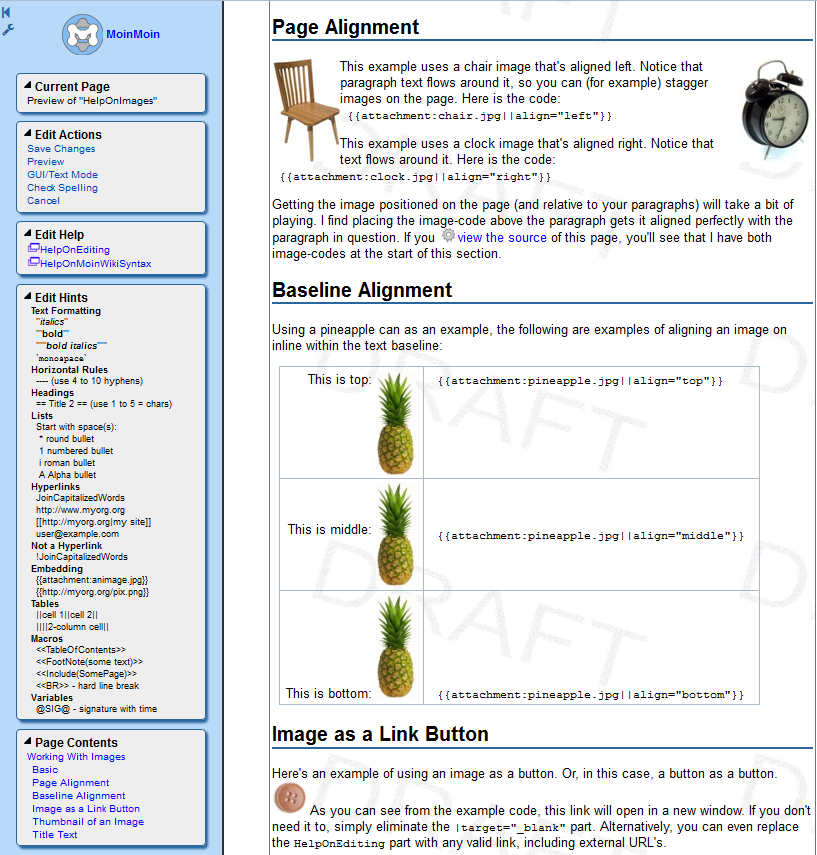
The edit page has a fixed left sidebar so the save button and text editor hints are always in view.
Flexing the Sidebar
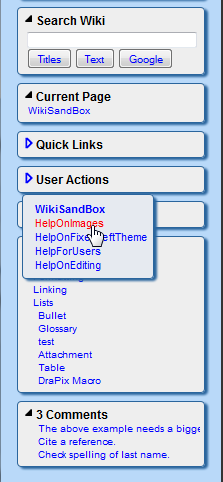
When working with a small monitor or a small window on a large monitor, fixed sidebars may have scrollbars because there are too many links packed into the sidebar. This potential problem may be mitigated by collapsing or hiding seldom used panels. The fixed left theme sidebar may be quickly changed by the user to fit the current work activity. Once changed, all subsequent wiki pages will reflect the changed state.
Each panel (except the logo) can be individually collapsed or expanded by clicking on the heading. The right side of the sidebar can be moved left or right by dragging the double-line border. As shown below, the Quick Links, User Actions, and Page Trail panels have been collapsed. Hovering the mouse pointer over the blue outline triangle to the left of the Page Trail panel heading results in a popup showing the panel links.
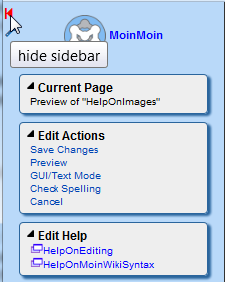
Fixed in the upper left margin of the sidebar is a hide sidebar icon. Clicking the hide icon hides the entire sidebar. Instead of the sidebar, a show sidebar icon and a menu icon are displayed.
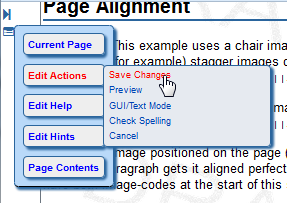
Rolling the mouse over the menu icon will display a flyout menu with the wiki navigation controls (except for the search and logo panels). When a page is in edit mode, the flyout menu will display the edit controls.
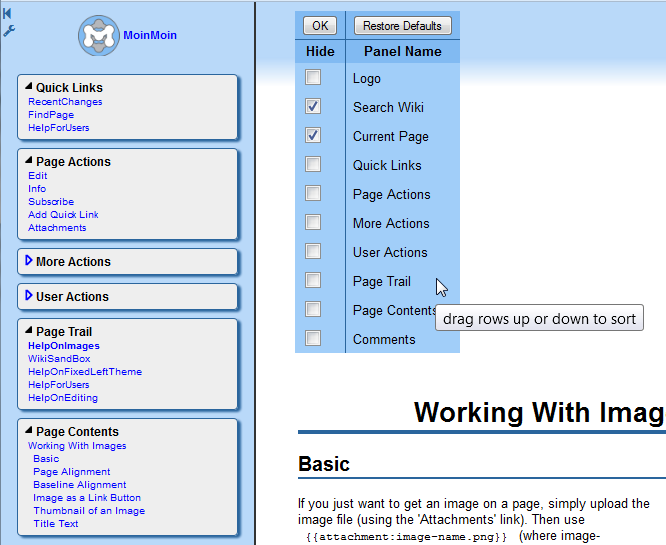
Clicking the wrench icon in the upper left margin will cause a sidebar options table to appear at the top of the wiki content area. Here, any seldom used panel can be hidden to reduce the size of the sidebar. In addition, the order of panels within the sidebar can be changed by dragging the table rows up or down.
The panels lists for show and edit pages are maintained as independent lists. Clicking the Restore Defaults button resets both show and edit to default values.
Edit Log Comments
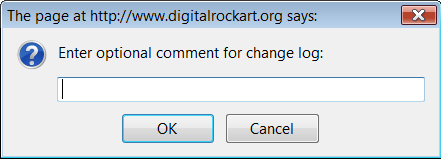
If you forget to enter a comment for the edit log, a reminder will appear. If you do not wish to enter a comment, just hit the enter button or click the OK button. Clicking the Cancel button cancels the page save.
Scroll to Heading or Comment
A sidebar table of contents is available so the user can quickly scroll the page to a desired topic. Clicking a heading within the page content area will also scroll the heading to the top of the page.
If the page has comments, the Comments panel will show the current display state and number of comments. Clicking the comments heading to collapse/expand the panel will hide/show all page comments. When the comments are displayed, the first line or 50 characters of each comment are displayed as a list. Clicking on the comment will scroll the page to the comment.
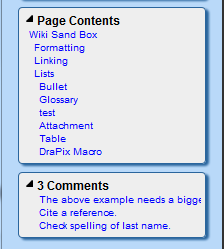
The display of page comments are initially on or off based upon the user preference option Show comment sections. After a comments panel heading is clicked the client-side setting will override the server-side User Preferences setting. To create a comment on a page:
/* Example comment */
Sortable Tables
Moin-style tables, CSV tables, and tables created with custom macros are sortable by default with the exception of the following:
- page history (page info) or user preferences tables
- tables containing rowspan or colspan
- tables with fewer than 4 rows
moin-style tables with a <tableclass="donotsort"> in the first cell
CSV-style tables with a first cell beginning with donotsort
If all rows of a table are within a tbody (normal case for Moin 1.9.x) or there is no tbody, then the first row of the table is converted to a header row. Moin-style tables may have footers by adding a <rowclass="tfoot"> to the first cell of any table row.
||Part||Quantity||Price||
||A||2||3||
||B||3||1||
||C||2||1||
||<rowclass="tfoot">Totals||7||5||
Sortable Tables have colored headers and sort sequence indicators. Clicking on a heading cell sorts the table and changes the sort sequence indicator to the cell. Multiple columns of a table may be sorted by clicking one column heading and then doing a shift-click on another heading. If you are viewing this page with the fixed left theme, you may test this by clicking on Price, then doing a shift-click on Quantity.
Part |
Quantity |
Price |
A |
2 |
3 |
B |
3 |
1 |
C |
2 |
1 |
Totals |
7 |
5 |
If you are not viewing this page with the fixed left theme, here is an image showing the results of the two column sort:
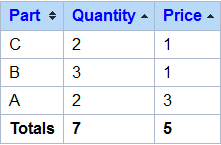
CSV-style tables do not have a facility to pass a rowclass. As a hack, you may prepend the string "tfoot" to the first cell of the last row to indicate a footer. To indicate a CSV-style table should not be sorted, prepend the string "donotsort" to the first cell or the first row.
{{{!#csv
Part;Quantity;Price
A;2;3
B;3;1
C;2;1
tfootTotals;7;5
}}}
If you are not viewing this page with the fixed left theme, see the image above.
Info for Wiki Admins
Macros That Generate Tables
If your wiki has custom macros that generate tables, the tables will be sortable by default subject to the conditions described under Sortable Tables above. Tables generated with thead and tbody elements will not be manipulated. Tables with or without a tbody element will be modified by a Javascript function to create a thead. If there is no tbody, one will be created.
Google Search
If your wiki is indexed by the Google bot, you can add a Google search button by adding a variable to wikiconfig.py defining the root url of your wiki:
searchGoogle = 'www.myorg.org/mywiki'
Browser Testing
This version was tested with current versions of IE, Firefox, Chrome, Safari for Windows, and Opera. IE8 and IE11 were lightly tested, no problems related to the sidebar were noted.
Changes
- 2013-10-09 bugfix for 1.9.7 version
- mitigate problems caused by single click to scroll heading and doubleclick to edit
- fix problems related to wiki-parser with class="comment"
- Firefox had ugly display
- text of comments did not display in sidebar comments panel
- Javascript did not always detect rowspan and colspan; tables were made sortable in error
- made custom cursors slightly smaller
- minor CSS tweaks
- 2013-08-26
- Upgraded to jQueryUI 1.10.3.
- Upgraded jQuery to 1.9.1.
Replaced !JavaScript sorttable with Motties Table Sorter.
- Sidebar styling changes (background color, etc.).
- Minor content styling changes (headings are underlined, gradient image used at top of content, etc.).
- CMS theme uses a wiki page for custom sidebar panels.
- Local Storage is used for saving the sidebar state.
- Removed support for IE6 and IE7 (browser must support JSON and localStorage).
- Custom cursors used for hover over content heading and sidebar panel heading.
- Clicking a heading in content area scrolls it to top of window.
- Font awesome used for sidebar control buttons.
- Comment links were moved to a separate panel in the sidebar.
- Renamed fixedleftmanger theme to fixedlefticonbar.
- Iconbar displays no-edit icon when user views immutable page.
Download
Before downloading, You may want to test the theme at http://www.digitalrockart.org/drawiki/WikiSandBox. The web site is using a slightly modified version of fixedleftcms. You may edit the !WikiSandBox page by double-clicking within the page content area.
Tested with MoinMoin 1.9.7
Installation of FixedLeft Theme
- Unzip package
- Copy fixedleft.py into ...MyWikiRepo/wiki/data/plugin/theme/
- If desired, copy fixedleftcms.py into ...MyWikiRepo/wiki/data/plugin/theme/
- If desired, copy fixedlefticonbar.py into ...MyWikiRepo/wiki/data/plugin/theme/
Copy !PageActions.py into ...MyWikiRepo/wiki/data/plugin/action/
- Replace the version distributed with the Mandarin and Solinoid themes.
- Copy fixedleft directory into ...MyWikiRepo/MoinMoin/web/static/htdocs/
The target directories above are valid if your wiki was installed using the Mercurial Clone method. If you installed !MoinMoin per the instructions, !MyWikiRepo above is the wiki root directory and htdocs is a subdirectory of the wiki root.
Customizing FixedLeftCMS
The fixedleftcms theme may be useful if casual visitors to your web site are not familar with the wiki concept and sometimes get lost in the wiki underlay pages. With the fixedleftcms theme, the wiki navigation links in the left sidebar may be supplemented with links to the most important pages of your web site. By default, the contents of the page SideBar will be added to the fixedleftcms sidebar. The page name may be overridden by adding a line sidebar = 'SomePageName' to wikiconfig.py.
The contents of the SideBar page should be similar to:
 * Panel One
   * link 1
   * link 2
 * Panel Two
   * link a
   * link b
Any wiki page may have a #pragma sidebar AnotherPageName that will override the default for that one page.
Use of the fixedleftcms theme requires that you make it the default theme for your wiki by adding the line theme_default = 'fixedleftcms' to wikiconfig.py. Users who are not logged in will get the cms theme, logged in users will get their preferred theme or default to fixedleft.
Adding or Removing Panels
Each of the 3 themes (fixedleft, fixedlefticonbar, and fixedleftcms) have a version of getViewPanelList with variations of panels that are commented out. The following code is from fixedleft.py:
   1     def getViewPanelList(self):
   2         """
   3         Return a list of panels for sidebar.
   4         """
   5         return (
   6             'Logo',
   7             #~ 'Icon Bar',
   8             #~ 'Custom Panels', # from "#pragma sidebar SomePageName", wikiconfig.py "sidebar = SomePageName" or "SideBar"
   9             'Search',
  10             'Current Page',
  11             'Navigation',
  12             'Page Actions',
  13             'More Actions',
  14             'User',
  15             'Page Trail',
  16             'Page Contents', # page toc generated by javascript
  17             'Comments', # links to comments on page, toggles show/hide comments
  18             )
A similar method is used to control the icons that appear in the sidebar of fixedlefticonbar. The following method is defined in fixedleft.py, comment/uncomment individual lines as desired:
   1     # possible choices for Icon Bar, use as many or as few as is desired, used by fixedlefticonbar
   2     # this overrides entry in /config/multiconfig.py
   3     page_iconbar = [
   4         # "diff",
   5         "edit",
   6         "revert", # visible when viewing an old version of a page
   7         "info",
   8         # "subscribe",  # makes subscribe/unsubscribe
   9         "quicklink",  # makes quicklink/quickunlink
  10         "attachments",
  11         "raw",
  12         "refresh",
  13         "spellcheck",
  14         # "slideshow",
  15         # "createpdf", # see /ActionMarket/PdfAction or CreatePdfDocument
  16         # "xml",
  17         # "print",
  18         # "up",
  19         "pageactions", # access to all actions
  20         # NOTE: show/hide comments icon will be included when page has comments
  21         # NOTE: discussion icon will be included when there is a discussion subpage
  22         ]